
Using the builder
from brief to published site.
The builder lives at /app. This page is for agency staff and clients who build sites. It can be shared with your clients as it is.
01Workspaces
A workspace holds the sites of one client, its members, its plan and its credit balance.
- Agency staff create workspaces (Create a workspace, or + New workspace… in the workspace menu) and can open every workspace.
- Clients see the workspaces they are members of. With open sign-up, a new account gets its own workspace.
- Team page (owners): Invite someone with an e-mail and a role → Create invite. The invite link is valid for 7 days and is also e-mailed if the operator has set up e-mail. If the operator allows it, the owner can also store the workspace's Own AI key here (see AI).
- Billing page: plan, credit balance, plans and credit packs to buy, the price of each AI action, the credit history. See Client billing.
Roles
| Role | Can do |
|---|---|
| Owner | Everything, including the team, custom domains, unpublishing and deleting sites and form messages, billing. |
| Editor | Builds, edits and publishes sites, uses AI, exports, sends review links. |
| Client | Edits texts and images only (see below). |
| Viewer | Looks at sites and reads form messages. Changes nothing. |
The client role is for handing a finished site to a client. A client can change the texts of existing sections (in every language the site already has) and replace images, including uploads and stock photos. A client cannot add, remove, move or re-lay out sections, add or remove list items, change link addresses, the theme, page addresses, site settings or languages, and cannot use AI, write in the blog, restore history, send review links or publish. The editor shows Content editing in the top bar and hides most of what the role cannot use. The server checks every save: a save that changes anything except texts and images is refused with "Your role can change texts and images. Ask the agency to change sections, layout or design."
02The Sites page
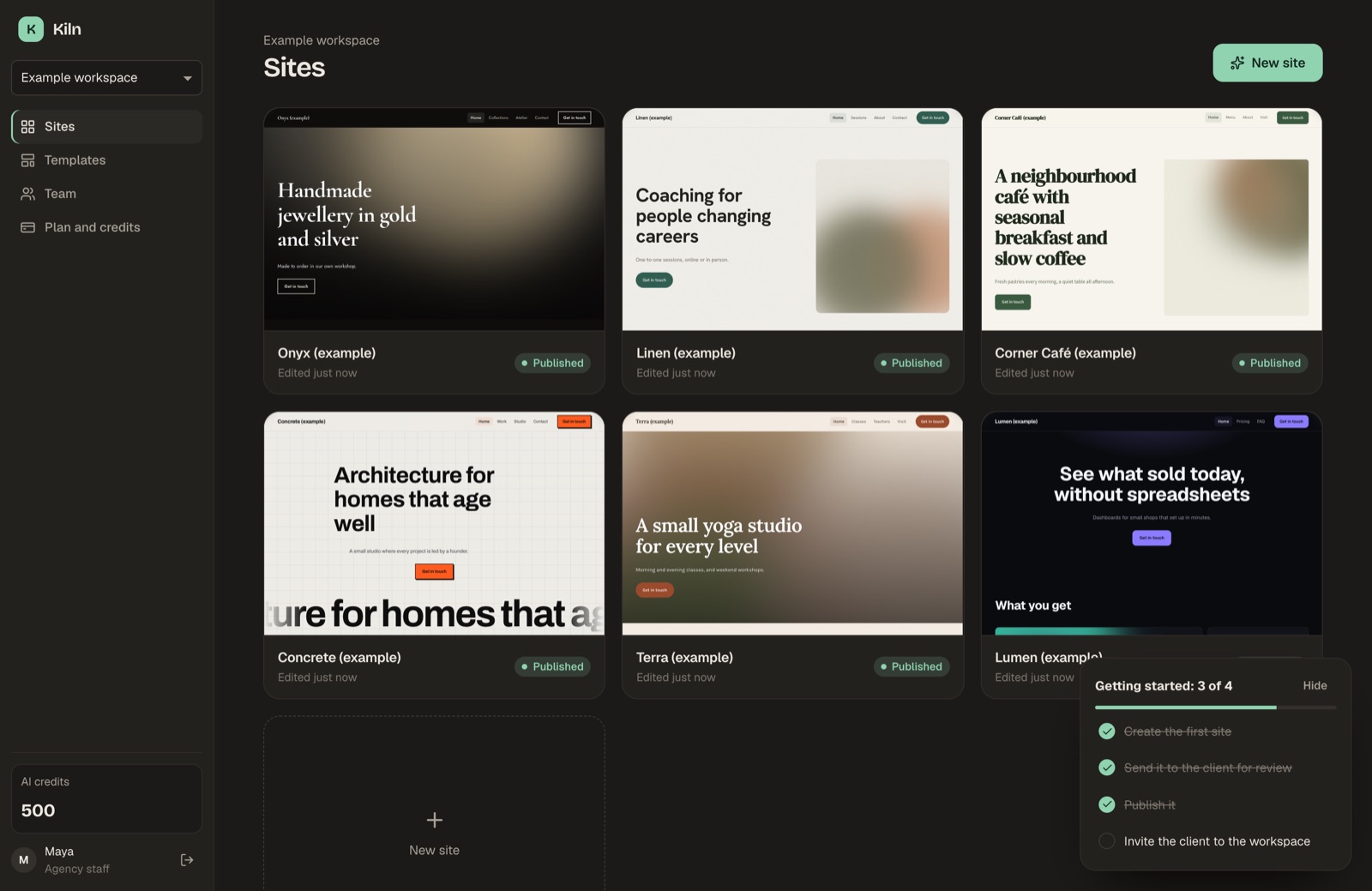
Each site card shows a live thumbnail of the home page and its status. The ⋯ menu on a card has:
- Open.
- Duplicate: a copy named "<site> (copy)" (editors and owners; counts against the plan's site limit).
- Save as template (agency staff only): see Agency templates.
- Delete (owners): cannot be undone.
Getting started is a short checklist above the sites: create the first site, send it for review, publish it, invite the client. It disappears when every step is done, or when you hide it.
03Creating a site
On the workspace's Sites page, choose New site (Start from a brief) or Pick a template.
From a template
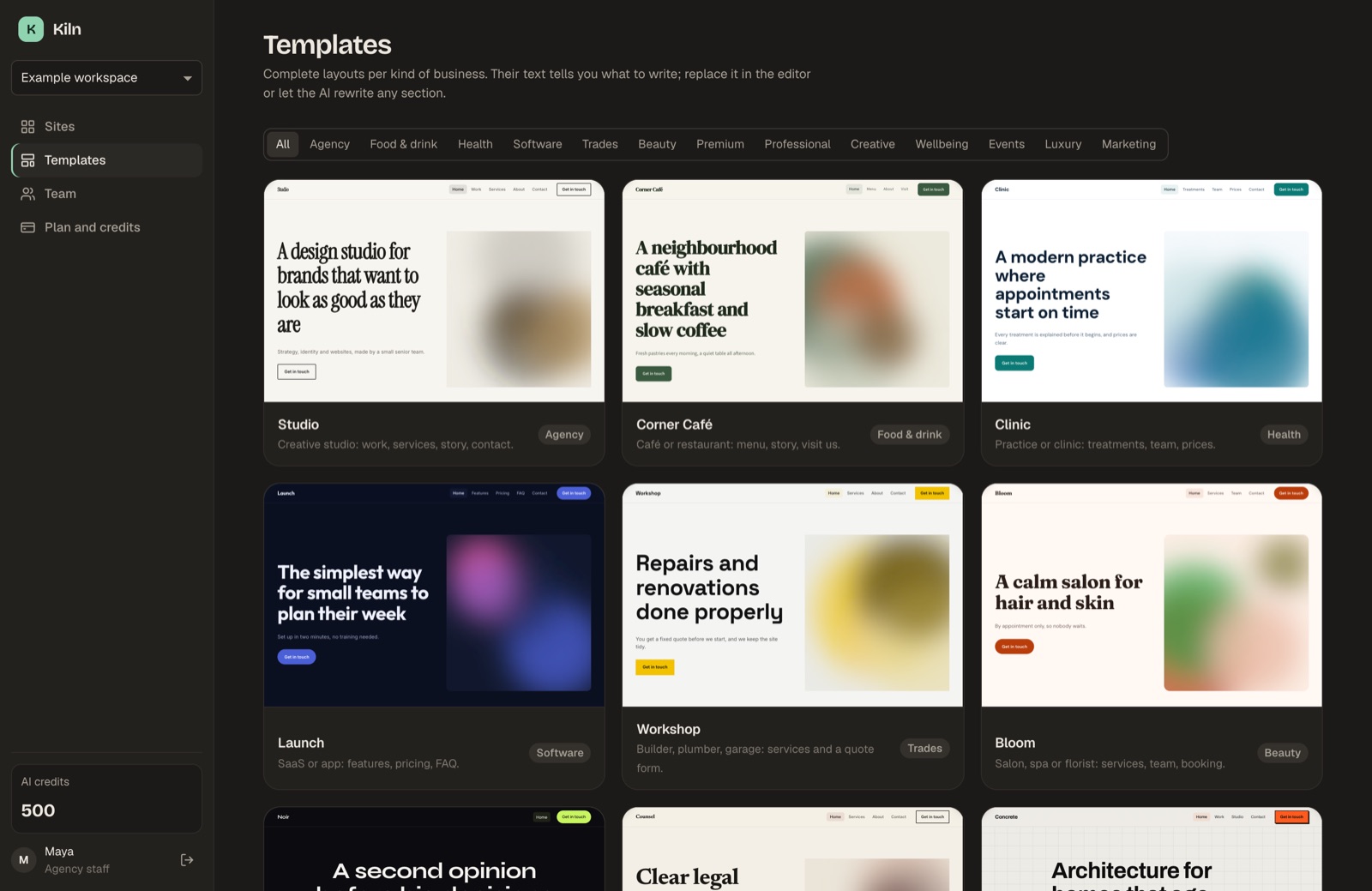
Sixteen templates are included, filtered by category: Studio (agency), Corner Café and Arcade (food and drink), Clinic (health), Launch and Lumen (software), Workshop (trades), Bloom (beauty), Noir (premium), Counsel (professional), Concrete (creative), Linen and Terra (wellbeing), Sorbet (events), Onyx (luxury) and Landing page (marketing). A template creates the site at once, with its pages, sections and style. It costs no credits. Template text explains what to write; it does not pretend to be a real business.
Agency templates
Agency staff can turn any site into a template: ⋯ on the site card → Save as template → a name. Saved templates appear under the category Your agency in every workspace, and everyone who can create sites can start from them. Kiln removes the analytics ids, the form webhook, the WhatsApp and call buttons, the announcement bar, the blog and its posts, and all translations. Texts and images are kept, so remove anything that belongs to one client before you save. Staff can delete an agency template from the template gallery; sites made from it stay.
From a brief
- The brief. Business name; what the business does and for whom; audience; tone (friendly, professional, bold, luxury, playful or calm); pages (a preset or your own comma-separated list, home first); languages (the first is the main language; the plan sets how many); and facts the copy may use: phone, e-mail, address, opening hours, real prices, real client names. The AI uses only these facts.
- The plan board. Plan the site returns the pages, the sections of each page with their purpose, and a style. Rename pages, move them, remove them; move, remove and add sections. Nothing has been written yet.
- Build. Write N pages (X credits) writes each page with AI and shows the progress page by page. Build as draft (free) builds the same structure without AI. When it is done, the editor opens.
Without an AI key, both steps use the free draft engine and the buttons read Plan the draft and Build the draft.
Rebuild from a client's current site
If the client already has a website, paste its address at the top of the brief and choose Read the site. Kiln reads the text of that one page and fills the brief: the business name (from the page title), a description, the e-mail addresses and phone numbers it finds, the headings and paragraphs (as facts the copy may use), up to five page names from the site's menu, and the language. Check the brief before you plan the site.
- Only text is read. Images, styles and scripts are not copied.
- Only public addresses work, and only the page you paste (following up to three redirects). Up to 2 MB of the page is read, and Kiln waits at most 10 seconds.
- A site that shows its text only through JavaScript cannot be read: "No readable text on that page."
- Each person can read 10 sites per minute.
Error messages are listed in Troubleshooting.
04The editor
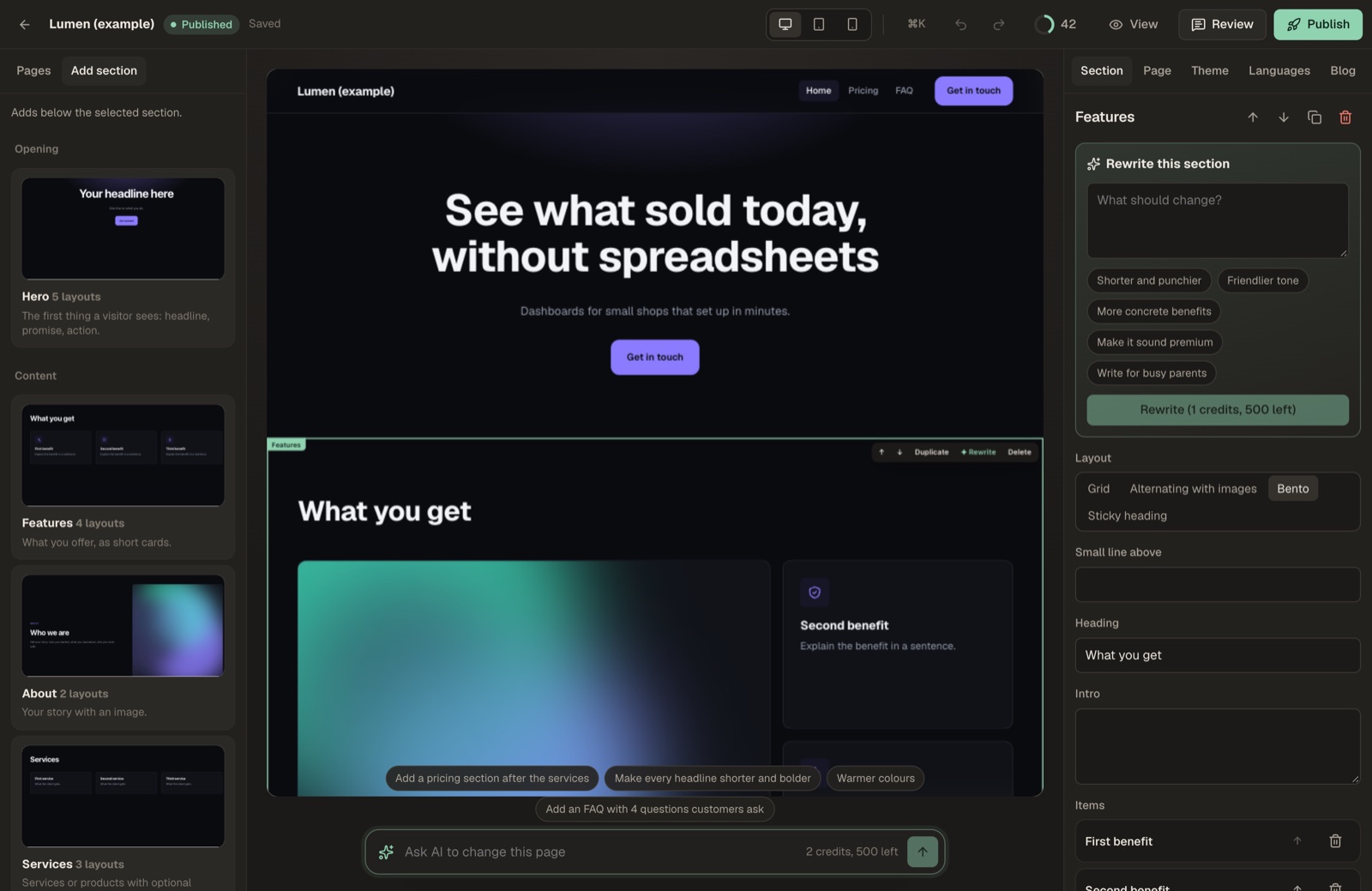
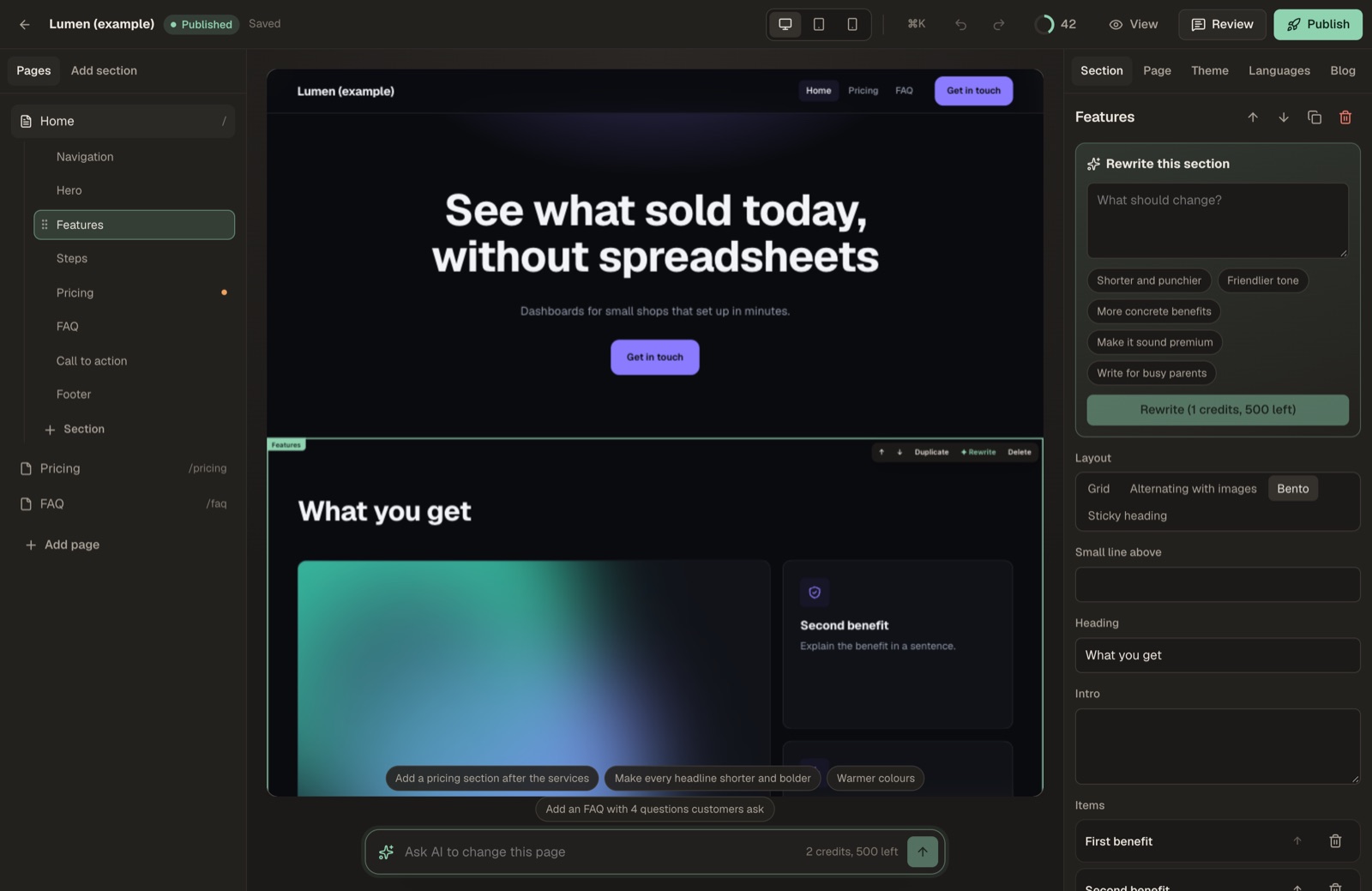
Three panes:
- Left: Pages lists the pages; the open page shows its sections. Click a section to select it. Drag a section in the list to move it. A dot marks a section that still has placeholders. Add page, move pages, delete pages (not the home page). Add section opens the section library.
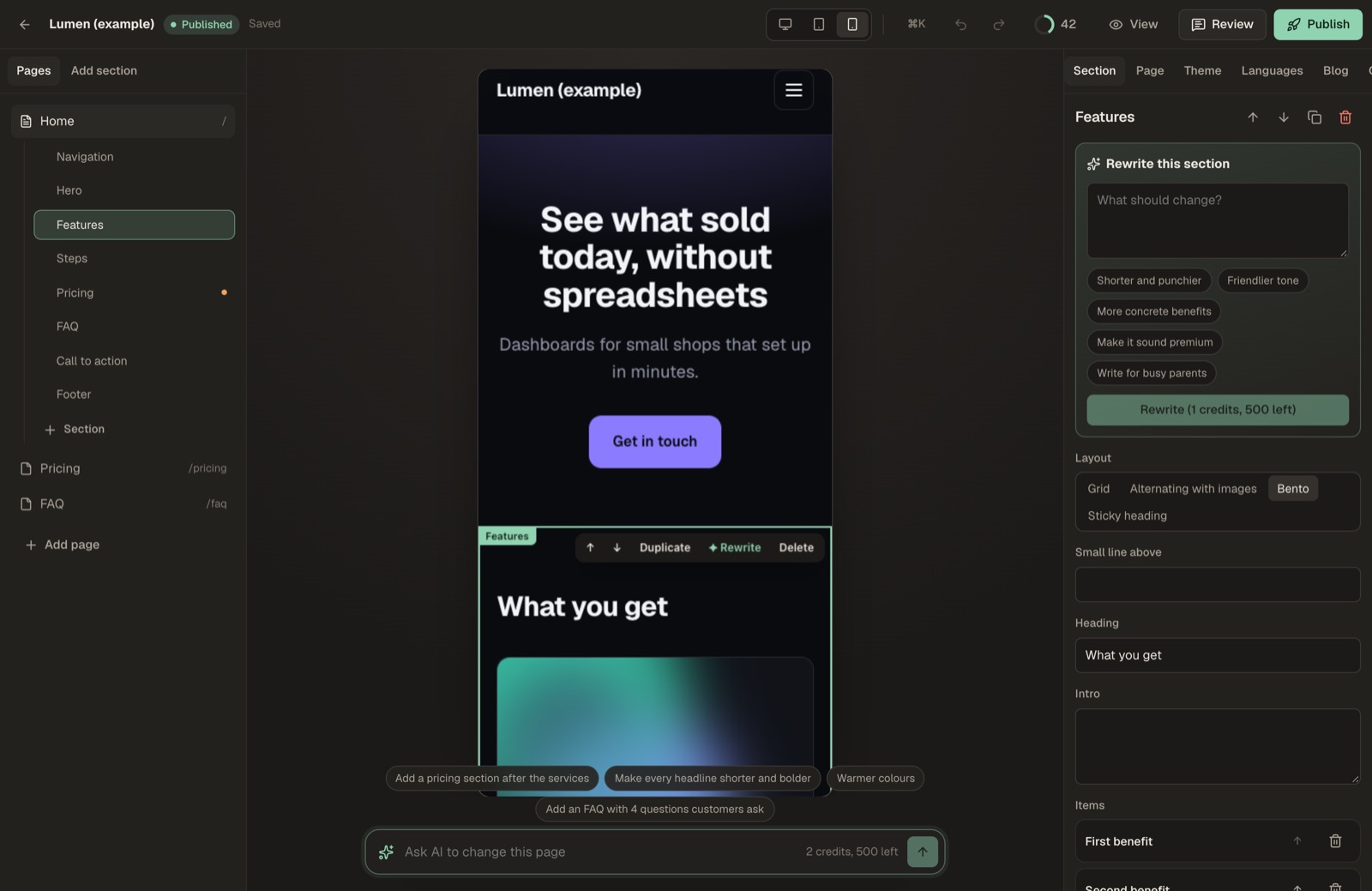
- Centre: the canvas. The real page at desktop (1280 px), tablet (820 px) or mobile (390 px) width, scaled to fit. Switch the device at the top.
- Right: the inspector, with the tabs Section, Page, Theme, Languages, Blog, Checks, History and Forms.
The top bar shows the save state (Saved, Unsaved changes, Saving…, Not saved), the command palette (⌘K), undo and redo, the checks score, View (once published), Review and Publish.
Changes save automatically 1.5 seconds after you stop typing. Undo keeps the last 50 steps while the editor is open.
Editing text on the canvas
- Click a section on the canvas to select it.
- Click a text inside the selected section (or double-click any text on the page). It gets a frame and a cursor.
- Type. Enter or a click outside saves the change; Esc cancels it. In paragraphs and rich text, Enter starts a new line or paragraph instead; Shift+Enter adds a line break.
Headings, paragraphs, button labels and the texts of cards, steps, prices, quotes and questions can be edited this way. A field that is empty is not shown on the page: fill it in the Section tab. Link addresses, images and lists are edited in the Section tab. With another language chosen in the top bar, canvas edits are saved as that language's translation.
The section toolbar
The selected section shows a small toolbar on the canvas: ↑ and ↓ (move), Duplicate, ✦ Rewrite (opens the AI rewrite box in the Section tab; shown when AI is set up) and Delete. The same actions are at the top of the Section tab.
Asking AI to change the page
When AI is set up, a bar over the canvas reads Ask AI to change this page. Write the change in plain words, for example "Add an FAQ with 4 questions customers ask" or "Warmer colours", and send it. The AI can rewrite and re-lay out sections of the open page, add sections, remove sections and change the theme colours. It cannot add another navigation or footer. Its short answer appears above the bar.
- Each request costs the chat price in credits (the bar shows the price and your balance). A failed request is refunded.
- The whole answer is applied as one undo step: Undo puts the page back as it was.
- The bar works on the open page in the main language. It is hidden for the client and viewer roles.
- The AI follows the same copy rules as everywhere else: no invented quotes, people, prices or numbers. See AI.
The command palette
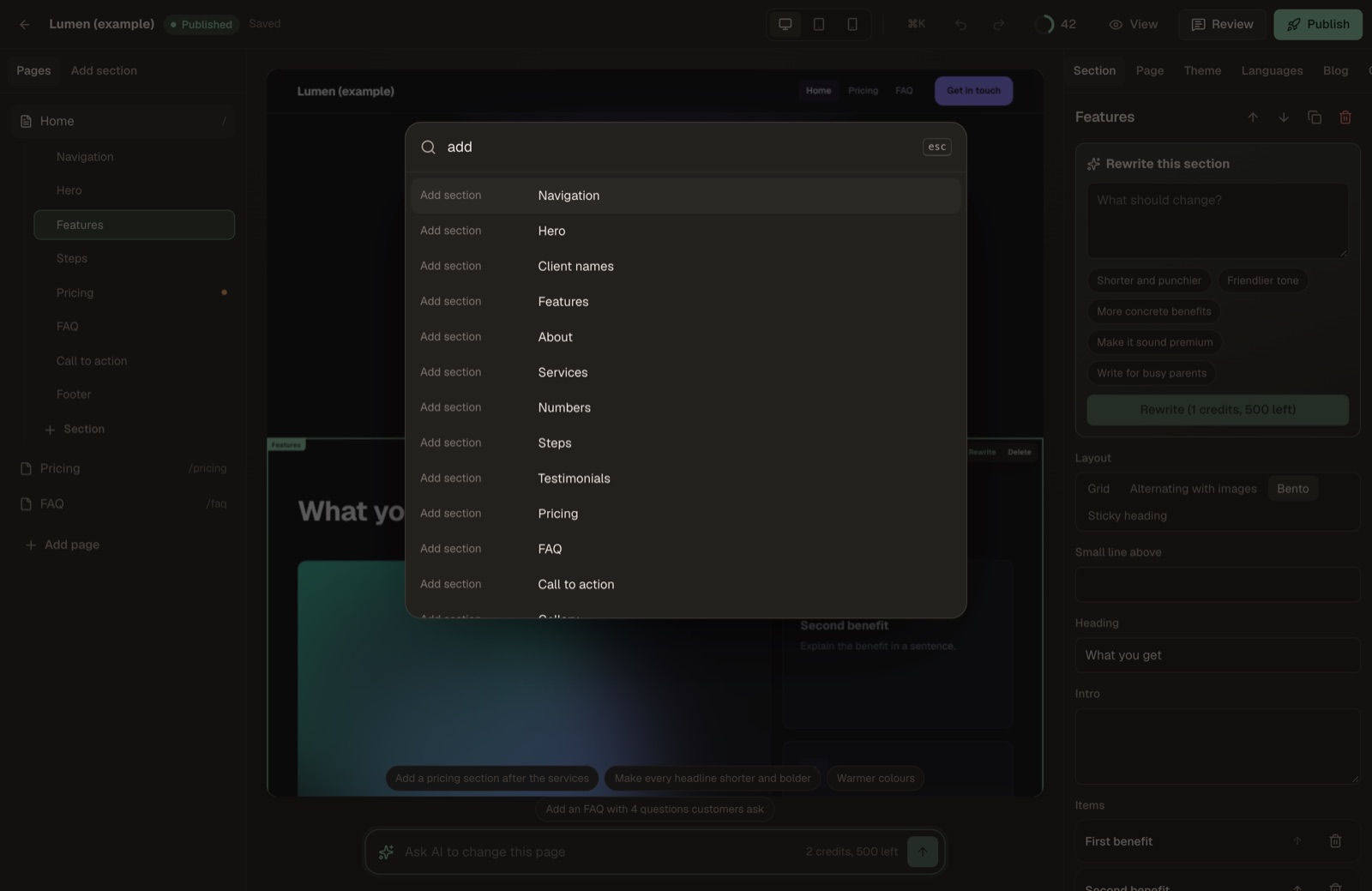
Press ⌘K (Ctrl+K on Windows and Linux) or click ⌘K in the top bar. Type to filter, use the arrow keys, and press Enter to run. The palette can add any section, go to a page, open an inspector tab, switch the preview device, save, undo, redo, publish, send for review, and duplicate, delete or move the selected section.
05The section library
Add section lists every section with a live thumbnail drawn in the site's own theme, and the number of layouts. Sections that should hold only real facts carry the tag Needs your real data. New sections are added below the selected section, or above the footer when nothing is selected.
| Section | Layouts | What it is |
|---|---|---|
| Navigation | Simple, Centered logo | Logo, page links and a call to action; optional language switcher. |
| Hero | Centered, Split with image, Full image, Image with fact cards, Moving headline | The first thing a visitor sees: headline, promise, action. |
| Client names | Row, Moving band | Client or partner names (text, not logos). Real data. |
| Features | Grid, Alternating with images, Bento, Sticky heading | What you offer, as short cards. |
| About | Image right, Image left | Your story with an image. |
| Services | Cards, List, Work with images | Services or products with optional prices. Real data. |
| Numbers | Row, Big band | Your own figures. Empty until you add real ones. Real data. |
| Steps | Numbered, Timeline | How it works, in order. |
| Testimonials | Cards, One big quote, Wall of quotes | Real quotes from real clients only. Real data. |
| Pricing | Cards, Monthly / yearly switch | Plans with prices you set. The switch shows a second price and period per plan. Real data. |
| FAQ | Accordion, Two columns | Questions visitors ask before they buy. |
| Call to action | Banner, Split, Newsletter sign-up | A banner that asks for the next step. The newsletter layout is an e-mail field; see below. |
| Gallery | Grid, Masonry, Before and after slider | Images. The slider compares the first two images. |
| Team | Grid | The real people behind the business. Real data. |
| Contact form | Form and details, Form only | A form that lands in the forms inbox, plus contact details. Fields: name, e-mail, message, optionally phone. |
| Text | Narrow, Wide | Free text: headings, paragraphs, lists, links. |
| Location | Card, With map | Address, opening hours and a map link. With map shows a Google map that loads only when the visitor clicks Show the map. |
| Booking | Calendar on the page, Button | A Cal.com or Calendly booking page. See below. |
| Latest posts | Cards, List | The newest published blog posts (1 to 12) with a link to the blog. |
| Video | Wide, With text | A YouTube or Vimeo video. See below. |
| Footer | Columns, Minimal | Brand, links and the small print. |
Newsletter sign-up. Each sign-up arrives in the site's forms inbox (and the form webhook, if set) as a message "Newsletter sign-up" with the visitor's e-mail. Kiln does not send newsletters and does not manage unsubscribes: export the addresses or pass them to your mailing tool, and change the small print under the field so it says what really happens.
Booking. Paste the address of a Cal.com or Calendly booking page (https://cal.com/…, https://app.cal.com/… or https://calendly.com/…); other addresses are ignored and the button stays inactive. Calendar on the page loads the calendar only after the visitor clicks the button; Button opens the booking page in a new tab.
Video. Paste a YouTube link (watch, shorts, youtu.be or embed) or a Vimeo link. The page shows the cover image and a play button; the player loads only when the visitor clicks. YouTube plays from youtube-nocookie.com, Vimeo with its do-not-track option. Any other link plays nothing.
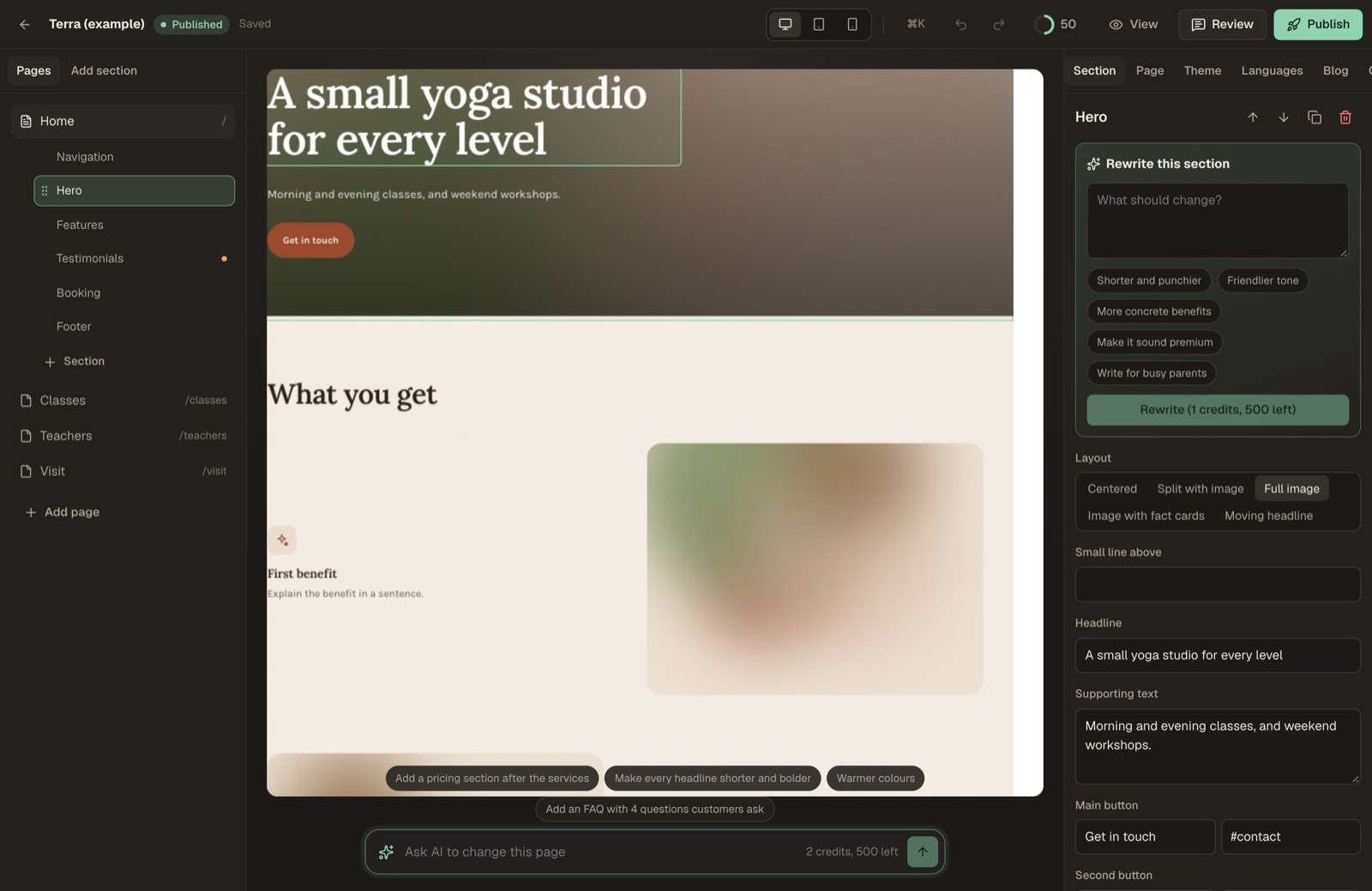
06The Section tab (inspector)
- Move up / down, duplicate, delete buttons.
- Rewrite this section (when AI is set up): type what should change or pick a suggestion, then Rewrite. The button shows the cost and your balance. Only this section changes; Undo restores the old text.
- Layout: the section's layouts.
- Content fields: generated from the section type: text, multi-line text, rich text (bold, italic, link, list), links (label and address), toggles, lists of items, and images. An image field opens the picker: Library (uploads: PNG, JPEG, WebP or GIF up to 8 MB), Stock photos (Pexels) and Generate with AI (OpenAI). Give every image an alt text: the checks flag missing ones.
- Background: Plain, Soft, Brand or Dark. Spacing: Tight, Normal or Airy.
07Theme
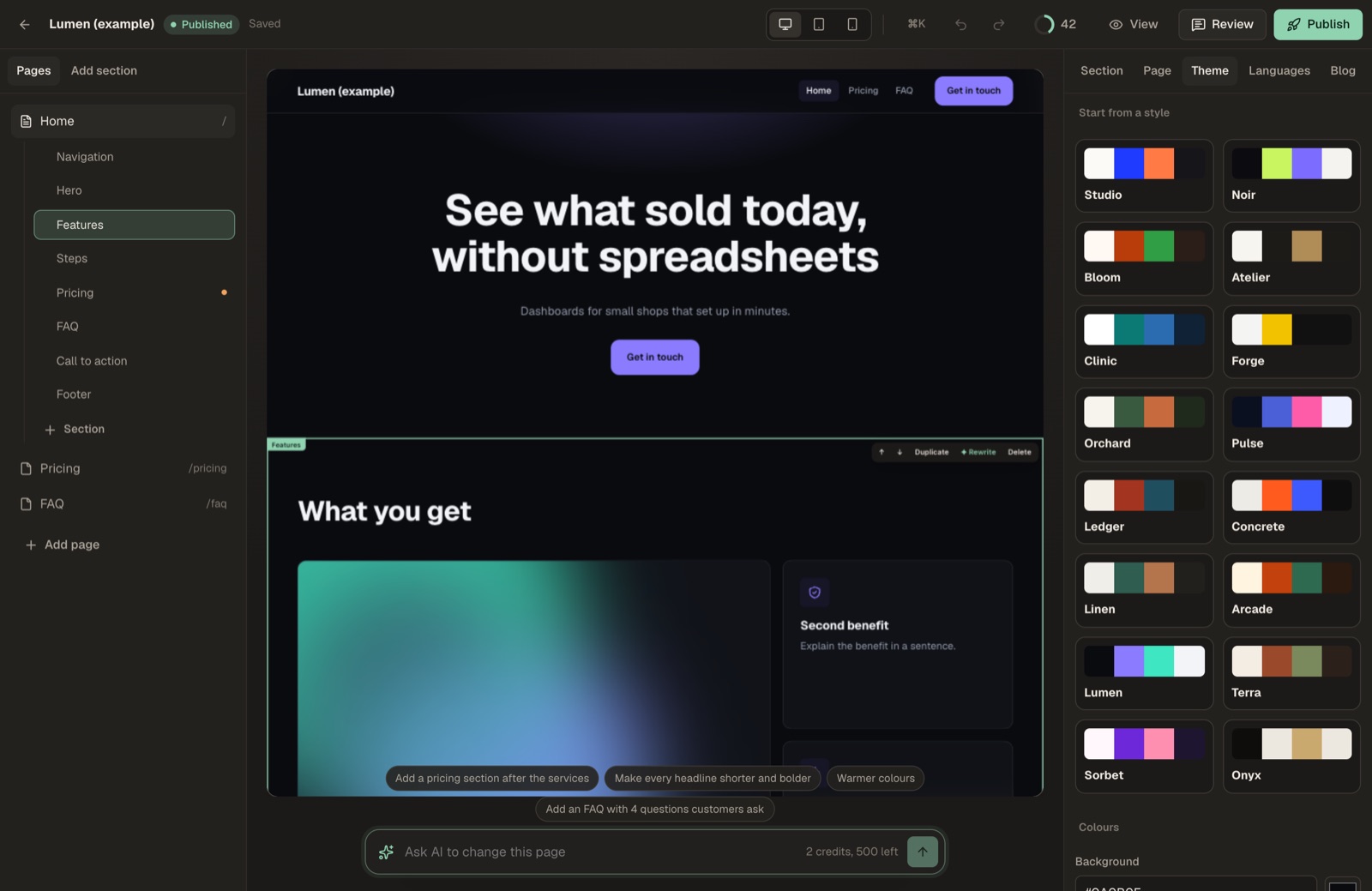
- Sixteen style presets: Studio, Noir, Bloom, Atelier, Clinic, Forge, Orchard, Pulse, Ledger, Concrete, Linen, Arcade, Lumen, Terra, Sorbet and Onyx. A preset replaces the whole theme; adjust it afterwards.
- Colours: background, soft background, text, secondary text, brand colour, text on brand colour, accent. Contrast problems are shown as warnings.
- Type: heading and body font (28 fonts, including two system fonts) and heading size (compact, balanced, dramatic). Load web fonts (Bunny Fonts) can be turned off to use system fonts only.
- Surface: how cards look: Flat, Lines (thin borders), Bold shadow or Glass. Texture: No texture, Grain or Grid on the page background.
- Shape: corner radius (0–32 px) and button style (solid, outline, pill).
Moving bands (hero, client names) and the reveal animation stand still for visitors whose system asks for reduced motion.
08Page and SEO
The Page tab holds the settings of the open page and of the whole site.
Per page: name (in the menu), address (lowercase letters, digits and dashes), SEO title (aim for up to 65 characters; empty uses "<page> | <site>"), description (up to 160; empty uses the hero text), share image, and Hide this page from search engines. Per site: site name, favicon, site share image and Kind of business (structured data). If the operator allows it, a field for code in <head>.
Published pages carry canonical links, Open Graph and Twitter tags, structured data, hreflang links, a sitemap and robots.txt.
Contact buttons and announcement
- WhatsApp number: international format, digits only (for example
421900123456). Shows a floating WhatsApp button that openswa.me. - Call button number: shows a floating call button (
tel:link). - Announcement bar and Announcement link: one line of up to 160 characters at the top of every page, optionally linked.
Form webhook
Send form messages to a webhook takes an https:// address, for example from Zapier, Make, n8n or a CRM. Every message from the site's contact and newsletter forms is then also posted there as JSON:
{ "site": "Northside Bakery", "siteId": "s_…", "page": "/contact/", "receivedAt": "2026-11-09T10:00:00.000Z",
  "fields": { "name": "…", "email": "…", "message": "…" } }
The message is stored in the inbox first; the webhook call does not hold up the visitor. Kiln does not retry a failed call and does not follow redirects. An address that is not https:// is dropped when the site is saved. For a published site, Kiln uses the webhook of the published version: publish again after you change it. The rules are in Security.
Analytics and cookie consent
Enter the client's own ids; Kiln adds the tracking code to the published site:
| Field | Format |
|---|---|
| Google Analytics 4 | Measurement id, G-XXXXXXX |
| Google Tag Manager | Container id, GTM-XXXXXX |
| Plausible domain | The site's domain as set up in Plausible, e.g. bakery.example |
| Meta Pixel id | Digits only |
An id that does not match its format is dropped when the site is saved. Tracking code never runs in the editor canvas.
Ask visitors for cookie consent first (EU) adds a banner with your text, Accept and Decline buttons and an optional privacy policy link. With the banner on, Google Analytics, Google Tag Manager and the Meta Pixel load only after the visitor clicks Accept. Plausible sets no cookies and always loads. The visitor's choice is remembered in their browser. The banner appears only when at least one analytics id is set.
09Blog
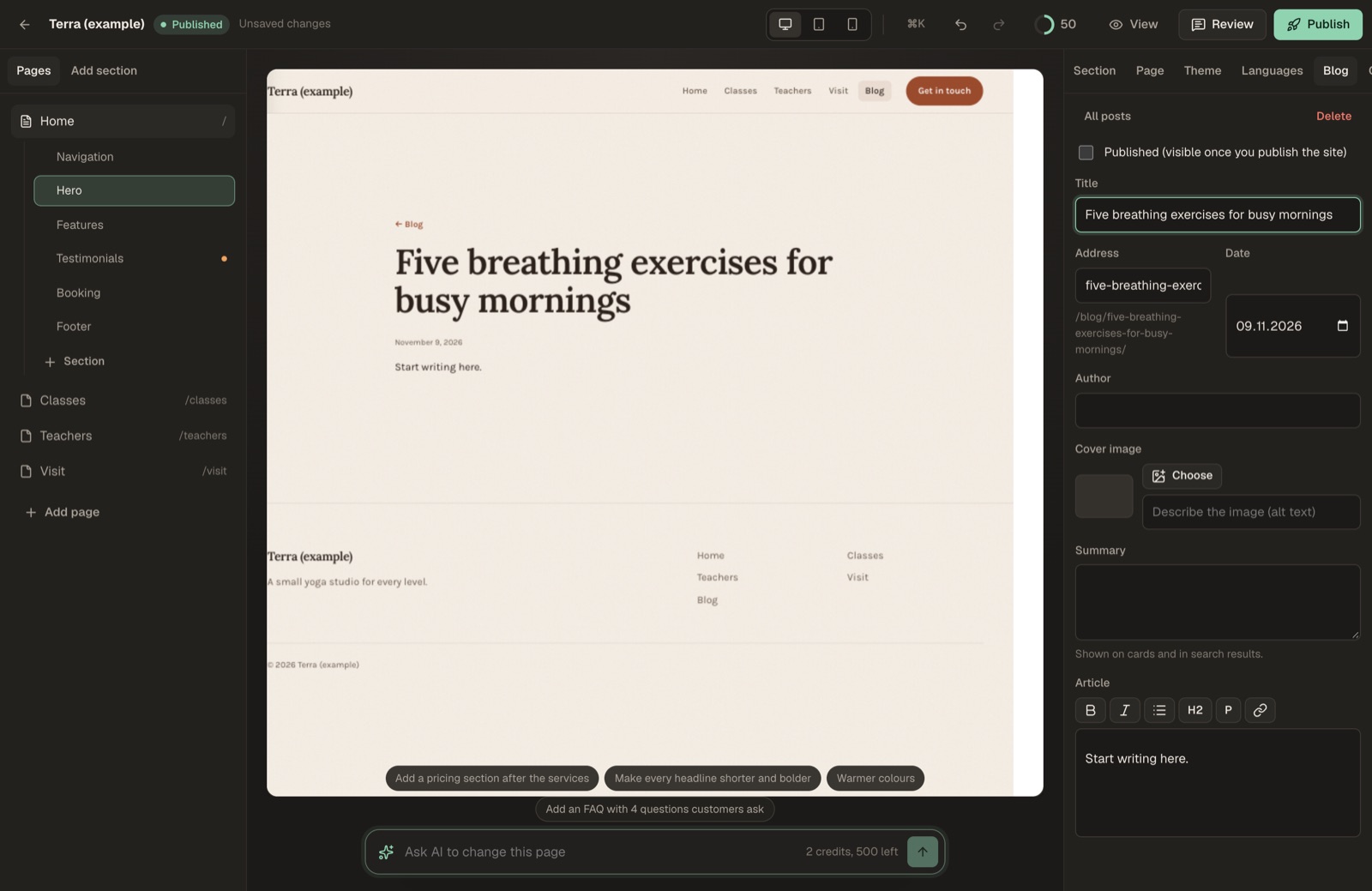
The Blog tab adds a blog to the site.
- Blog on this site turns it on. Blog name and Intro head the blog page.
- New post creates a draft. Each post has a title, an address (
/blog/<address>/; it follows the title until you edit it), a date, an author, a cover image, a summary (shown on cards and in search results) and the article in rich text. While you edit a post, the canvas shows it. - Published makes the post part of the site. Like every change, it goes live when you publish the site.
- Draft a post with AI (when AI is set up): give a topic and Kiln writes a draft of 600 to 900 words at the page price in credits. The draft is saved unpublished. The AI does not invent quotes, studies, statistics or prices; it writes
[placeholders]where a real fact is needed. Read the draft and replace them.
With at least one published post, the published site gets a blog page at /blog/, one page per post at /blog/<address>/, a Blog link in the navigation, entries in the sitemap and BlogPosting structured data on each post. The Latest posts section shows the newest posts on any page. The blog uses the home page's navigation and footer and is in the site's main language only.
10Languages
Languages tab: Add a language (21 are available). Each extra language gets its own addresses (/de/…). Choose Edit next to a language, then edit sections as usual: the main language's text shows as a hint. Translate fills a language with AI, at the translate price per page. You can always type translations by hand. Structure (adding or moving sections) is edited in the main language only.
11Checks
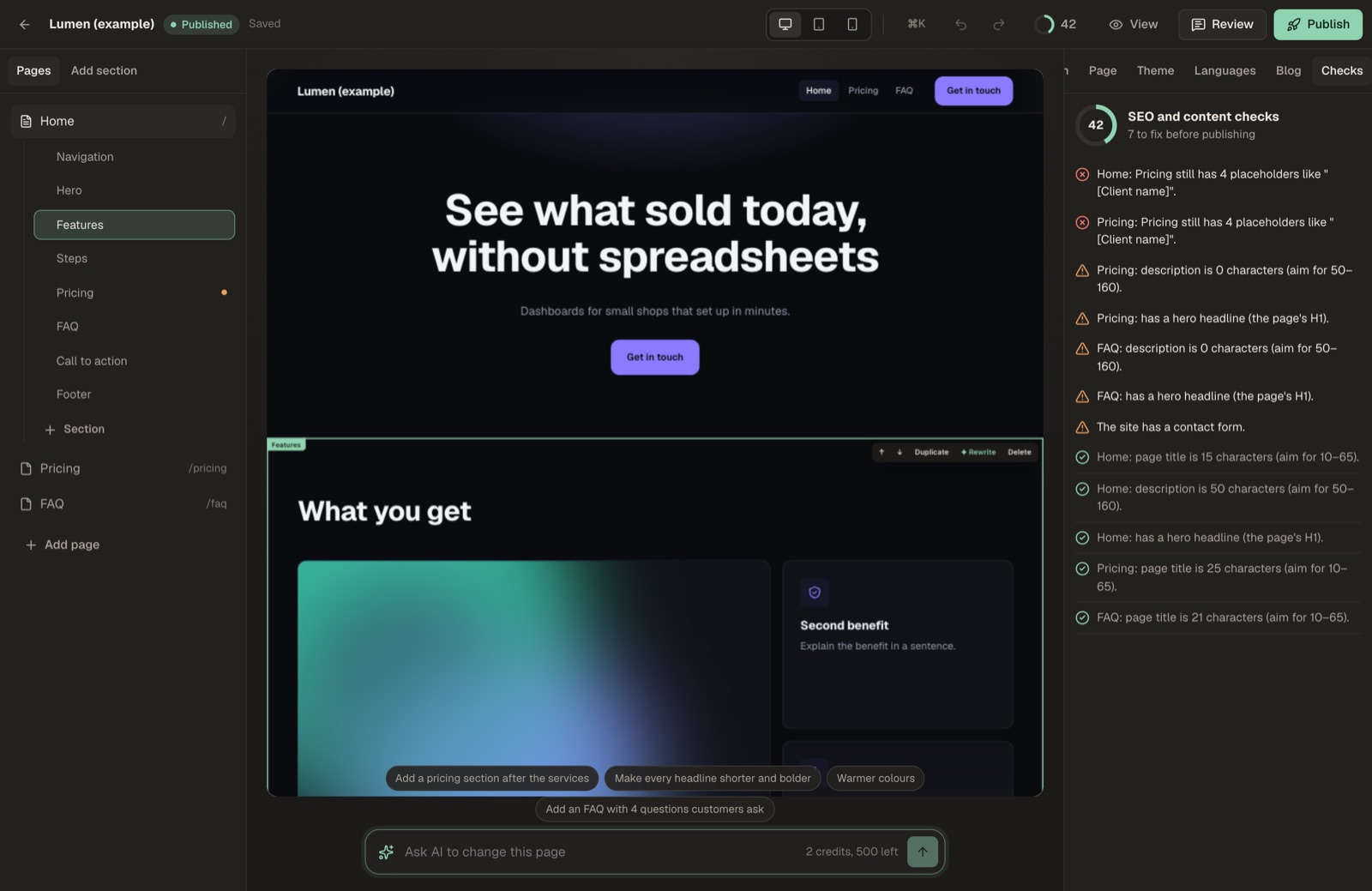
The score in the top bar is the share of checks that pass. The Checks tab lists what to fix; click an item to jump to it. Checks cover: page title and description length, duplicate titles, a hero headline (the page's H1), images without alt text, placeholders like [Client name] (shown as errors), untranslated sections, theme contrast, and whether the site has a contact form.
12History
A restorable snapshot is kept at most every 10 minutes while you edit, and at named steps such as generation and restore. Restore brings a version back; the current version stays in the history.
13Forms inbox
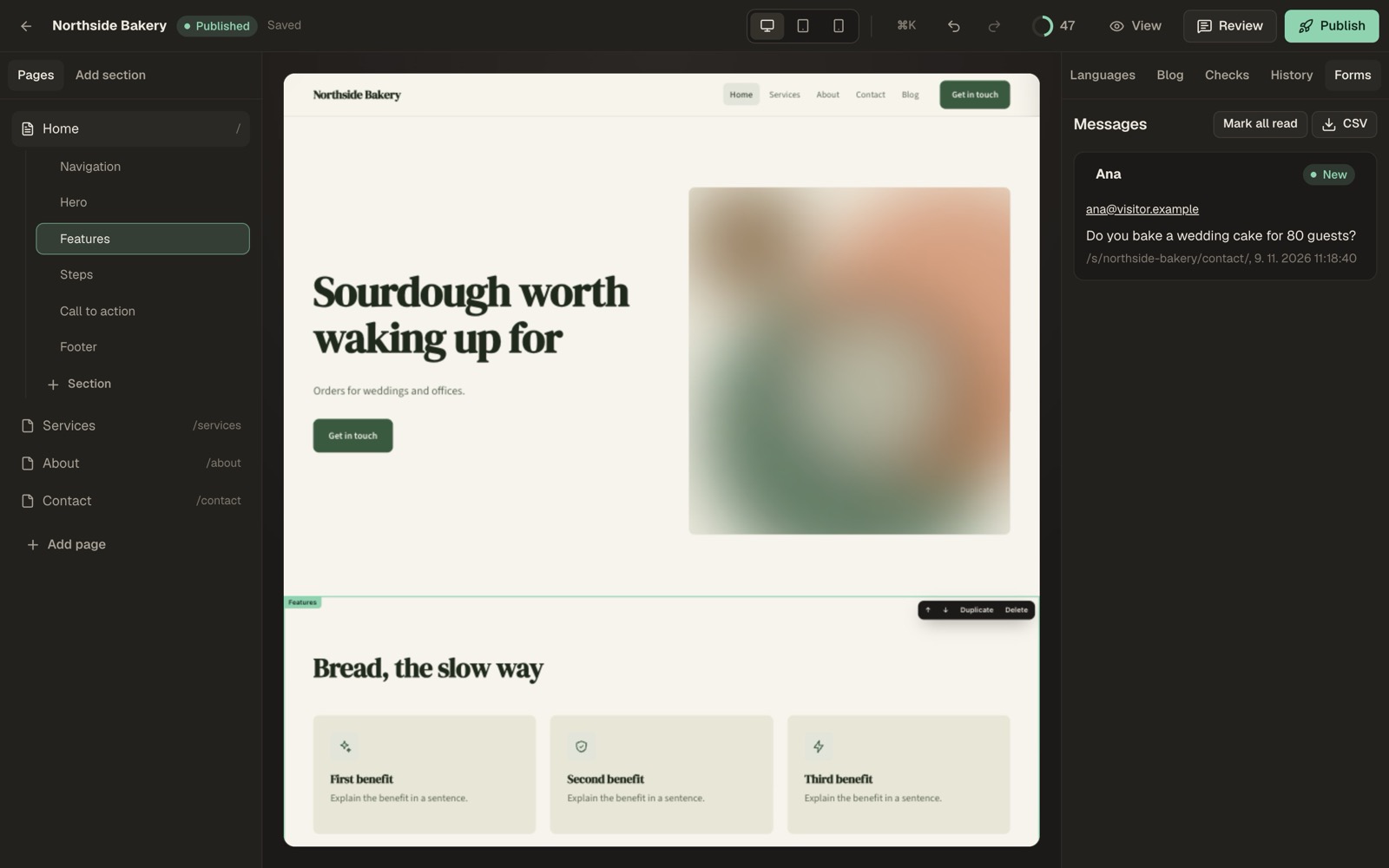
Messages sent through the contact and newsletter forms of the published site appear in the Forms tab, newest first, with Mark all read and a CSV download. Workspace owners also get an e-mail per message if the operator has e-mail set up, and the form webhook receives a copy if one is set.
14Review links for clients
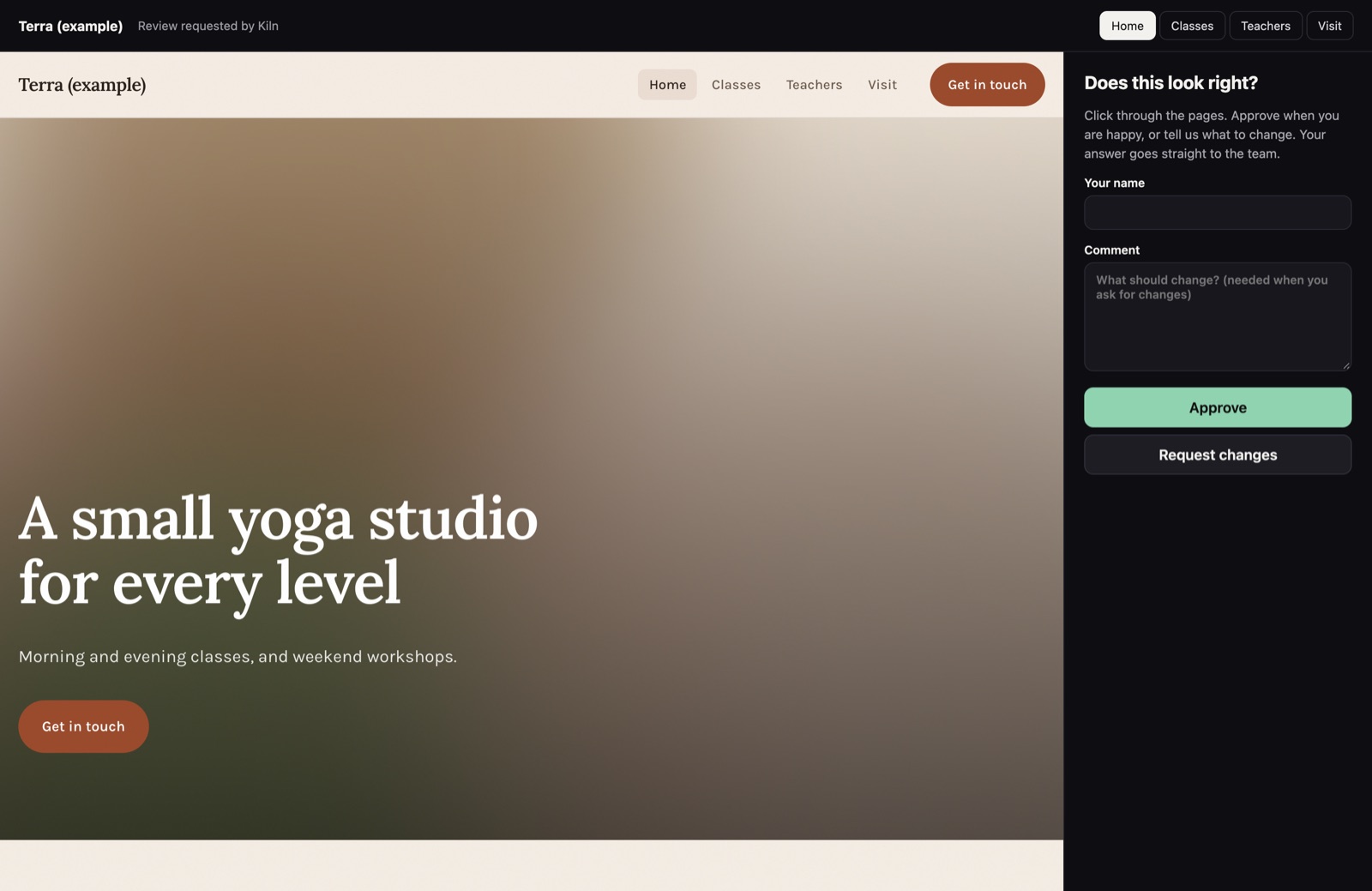
Review → Create review link. Send the link to your client. They need no account: they click through the pages of this version of the site and choose Approve or Request changes (a comment is required for changes). The site's status becomes In review, then Approved or back to Draft. The decision shows in the editor's Section tab when nothing is selected, and is e-mailed to whoever created the link. Later edits do not change an existing link: create a new one.
15Publishing
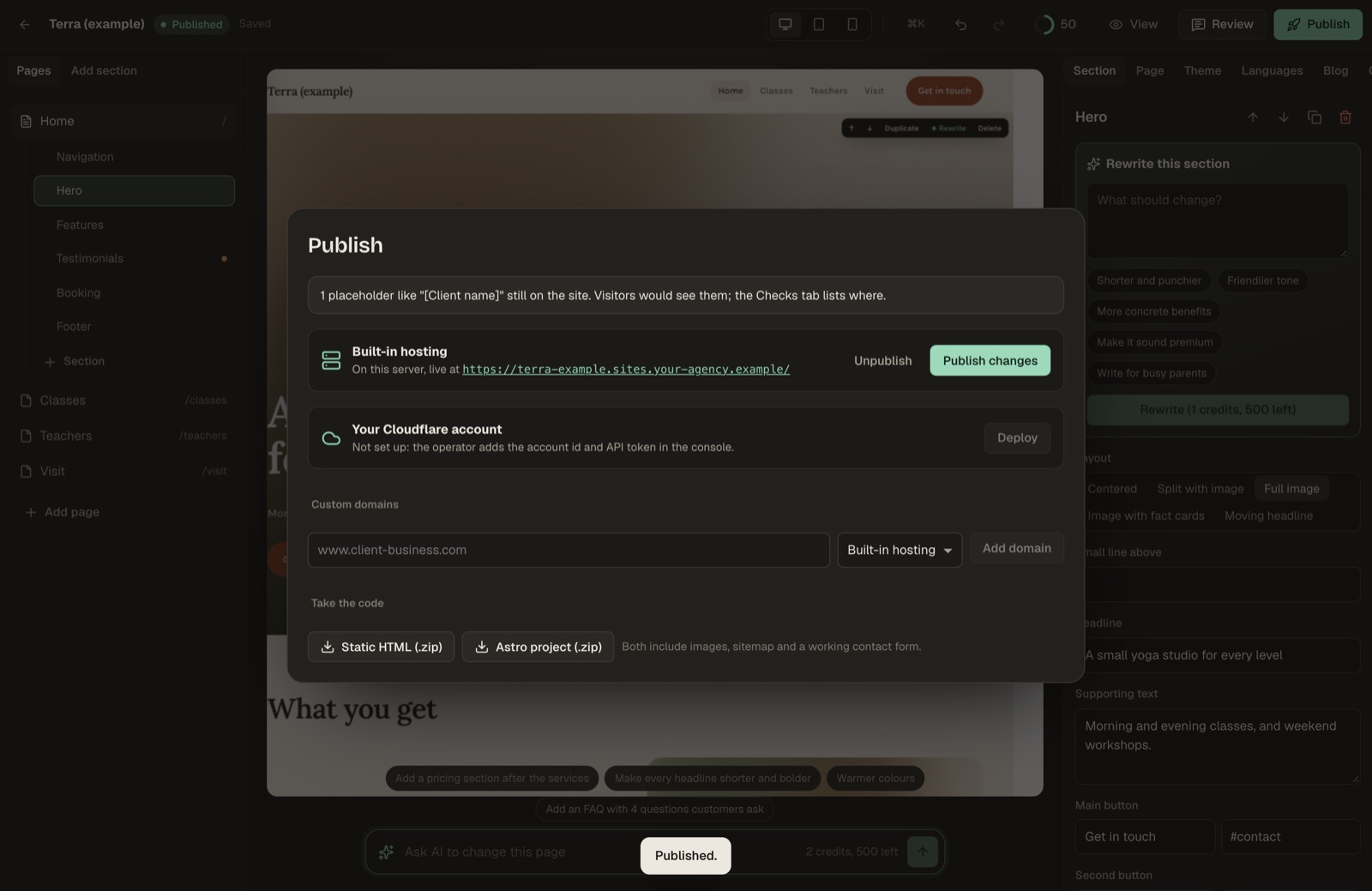
Publish opens the dialog. It warns when placeholders are still on the site.
- Built-in hosting: Publish / Publish changes. The address is shown in the dialog. Owners can Unpublish.
- Your Cloudflare account: Deploy / Deploy again, when the plan and the operator allow it. See Publishing to Cloudflare.
- Custom domains (owners, when the plan allows): enter the domain, choose built-in hosting or Cloudflare, Add domain, and follow the instruction shown. A built-in hosting domain shows Waiting for DNS until you add the TXT and CNAME records shown and press Verify; then it shows Active. A Cloudflare domain is attached at once. See Hosting.
16Export
Under Take the code (when the plan allows):
- Static HTML (.zip): one
index.htmlper page in its own folder (for example anaboutfolder), language folders, the blog,assets/,media/,sitemap.xml,robots.txt,404.htmland a README. Upload the folder's contents to any static host. - Astro project (.zip): one
.astrocomponent per section, a layout,astro.config.mjs, the images and a README. It needs Node.js 22.12 or newer. Runnpm installandnpm run build; the site is indist/(npm run devpreviews it athttp://localhost:4321). The Astro project holds the pages and their sections only: the blog, the announcement bar, the floating WhatsApp and call buttons, the analytics and the consent banner are not in it.
In both, the contact and newsletter forms keep posting to your Kiln server, so messages still arrive in the forms inbox.
17Keyboard shortcuts
On a Mac use ⌘ (Command); on Windows and Linux use Ctrl. They also work while the canvas has focus.
| Keys | Action |
|---|---|
| ⌘K / Ctrl+K | Open or close the command palette (works while typing in the inspector) |
| ⌘S / Ctrl+S | Save now (works while typing in the inspector) |
| ⌘Z / Ctrl+Z | Undo |
| ⇧⌘Z / Ctrl+Shift+Z, or Ctrl+Y | Redo |
| ⌘D / Ctrl+D | Duplicate the selected section |
| ⌥↑ / Alt+↑ | Move the selected section up |
| ⌥↓ / Alt+↓ | Move the selected section down |
| Delete or Backspace | Remove the selected section |
Except for the palette and save, shortcuts do nothing while the cursor is in a text field of the inspector. While a text on the canvas is being edited, no shortcut runs: press Enter or Esc first.